Client approvals
How to Get Client Approvals Without Endless Email Threads
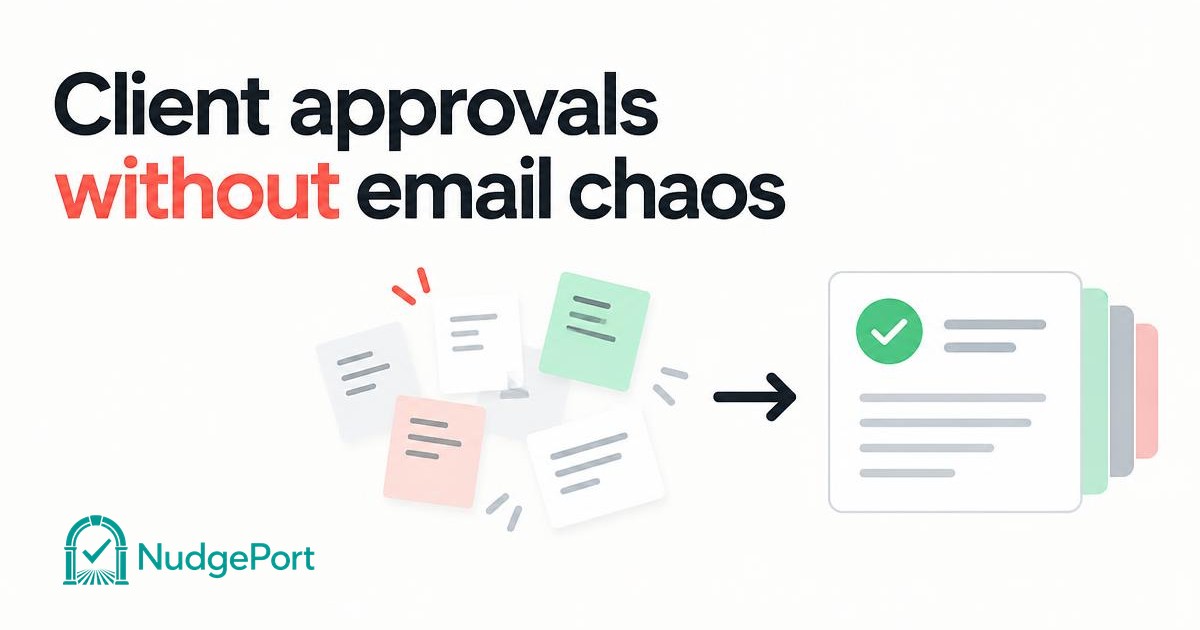
“Looks good.”
It sounds like an approval. But what exactly did the client approve?
The first design or the revised version? The headline or the entire page? The concept or the final files?
When feedback arrives through email, messages, shared documents, and calls, a simple decision can become difficult to track. You may have the conversation somewhere, but finding a clear answer means searching through it again.
A better approval process does not have to mean moving every file into another platform or asking clients to learn a complicated system. It starts with making three things clear: what needs a decision, which version is being reviewed, and where that decision is recorded.
Here is how to build that process—and how NudgePort fits into it.
Feedback and approval are not the same thing
Consider these two responses:
“I like the direction. Could we try a different colour?”
“I approve version 2 of the homepage design.”
Both are useful, but they mean different things.
The first is feedback. There is still work to do. The second is a decision about a specific version.
Your process should make that distinction visible. A comment should not automatically mean approval, and a team member marking work complete should not look like the client approved it.
For each deliverable, give the client a clear next step: approve it, request changes, or leave feedback.
This removes the need to interpret a positive-sounding message as permission to proceed.
Organize decisions around specific items
A project is usually too broad to approve in one step.
A website redesign might include a homepage concept, mobile layouts, navigation copy, and a final staging review. An interior design project might involve a floor plan, lighting choices, finishes, and a furniture selection.
Putting everything under “Please approve the project” makes it difficult to see what is finished and what still needs attention.
Instead, create an approval item for each meaningful decision.
For example, “Homepage design — version 2” is more useful than “Website update.” “Final kitchen finish selection” is clearer than “Latest documents.”
Group related items into phases such as Concept, Design, and Final Review. The phases provide structure; the items tell the client exactly what needs a decision.
You can then share several ready items together rather than sending a separate email for each one.
Keep the files where your work already happens
An approval process does not need to become another file-storage system.
Your design may already be in Figma. Your proposal may be in Google Drive. Your video may be hosted on Vimeo. Your copy may be short enough to review directly as text.
NudgePort lets you organize those links and short text into a client approval portal. Your original files remain in the tools you already use, while the review decisions and feedback are recorded in NudgePort.
The workflow becomes straightforward:
Prepare the work in your existing tool. Share it through the approval portal. Record the client’s decision against the relevant item and version.
For a short headline or scope statement, a text approval item can remove the need to create a separate document just to ask for confirmation.
Make the client’s next action obvious
A client should not have to work out how your internal process operates.
When they open the portal, the important question is not “What features are available?” It is:
“What do I need to do?”
That is why a clear Needs your attention section matters.
An approval item asks for a decision. A question asks for an answer. A reference link provides context. An invoice or payment link gives the client a way to view payment information or continue to an external payment page.
These should not all be presented as things to “approve.”
Keeping the actions specific makes the portal easier to use and the resulting history easier to understand.
In NudgePort, the client opens the project’s protected portal link and enters a one-time verification code sent to the project contact’s email address. They do not need to create a NudgePort account.
That keeps access separate from account registration: the client can review the work without signing up for another service.
Tie each approval to a specific version
Version history is most useful when it answers a practical question:
“Which version received this decision?”
Imagine the following sequence:
Version 1: The client requests a different layout.
Version 2: You revise the layout and submit it for review.
Version 2 approved: The client confirms that this is the version to use.
The earlier feedback should remain attached to version 1. The approval should remain attached to version 2. A later revision should create a new review round rather than silently changing what the earlier approval refers to.
There is an important distinction with externally hosted files, however: recording an approval does not freeze the content behind an external link.
If you replace a document or change a design at the same URL, that link may no longer display the content the client originally reviewed.
For important approvals, keep a separately saved version or use a version-specific link where your file provider supports it. Add a short description of what changed between rounds.
NudgePort records the linked version and the decision. It does not keep an independent copy of your externally hosted file.
A practical example: approving a brand refresh
Imagine a small studio preparing a brand refresh for a client.
The studio creates a project in NudgePort and selects the client contact who will receive the portal link. It adds phases for Concepts, Revisions, and Final Delivery.
In the Concepts phase, the studio creates two approval items: a Figma link for the logo concepts and a text item containing the proposed tagline.
Both items are ready, so the studio selects them and sends them together. The client receives a portal notification covering the selected work rather than a separate notification for every item.
The client opens the portal, completes email-code verification, and reviews the items.
They approve the tagline but request changes to the logo.
The studio now has two distinct outcomes. The wording is approved. The logo still needs work. There is no need to interpret whether “I like it” referred to both.
The designer adds version 2 of the logo concept, describes the change, and sends it for review. The client approves that version.
At the end of the project, the studio can review the decisions and, with a plan that includes the relevant export, download a project summary or approval history.
The files have stayed in the studio’s existing tools. The client has not created a NudgePort account. The feedback and decisions are organized around the work they concern.
This is an illustrative workflow, not a customer case study.
Keep file access separate from approval access
A protected approval portal and a protected source file serve different purposes.
NudgePort controls access to the approval portal. Your file provider controls access to the linked document, design, or video.
For confidential work, configure the external file’s permissions for the intended recipient. A link that allows anyone who possesses it to view a file is different from a link that also requires the recipient to sign in with an authorized account.
View-only access can limit editing, but it does not necessarily restrict who can open the file.
Keep document passwords and access codes out of project descriptions, comments, and approval text. Share them through a separate secure channel when needed.
Also remember that no NudgePort account required does not mean the external file is always accessible without an account. Your storage or design platform may still require its own sign-in.
Give your team structure without giving the client complexity
When several people contribute to a project, internal responsibilities should be clear without making the client manage your team.
On the Agency plan, NudgePort supports assigning phases to team members. A designer can work on the design phase while another colleague handles a different part of the project.
The client still receives one project portal with the work shared for their review.
For larger work involving separate external parties, project groups provide another layer of organization. An event agency, for example, can group separate approval projects for a client, a venue, and a supplier under one event.
Each project keeps its own portal contact and approval history. Grouping the work internally does not turn it into one shared portal for everyone.
Start with one real approval
You do not need to rebuild your entire workflow to find out whether a clearer approval process helps.
Start with something you already need a client to review: a design concept, a proposal, a video cut, or a short piece of copy.
Give it a clear title. Identify the version. Make the requested action obvious. Keep the feedback and final decision together.
The goal is not to add another place to check. It is to make the next decision easier to find—and the previous decision easier to understand.
NudgePort gives you one protected portal per project, focused feedback, and a timestamped approval history, while your original files stay in your own tools.
Your first project is free, with up to three phases and five items. No credit card required.